



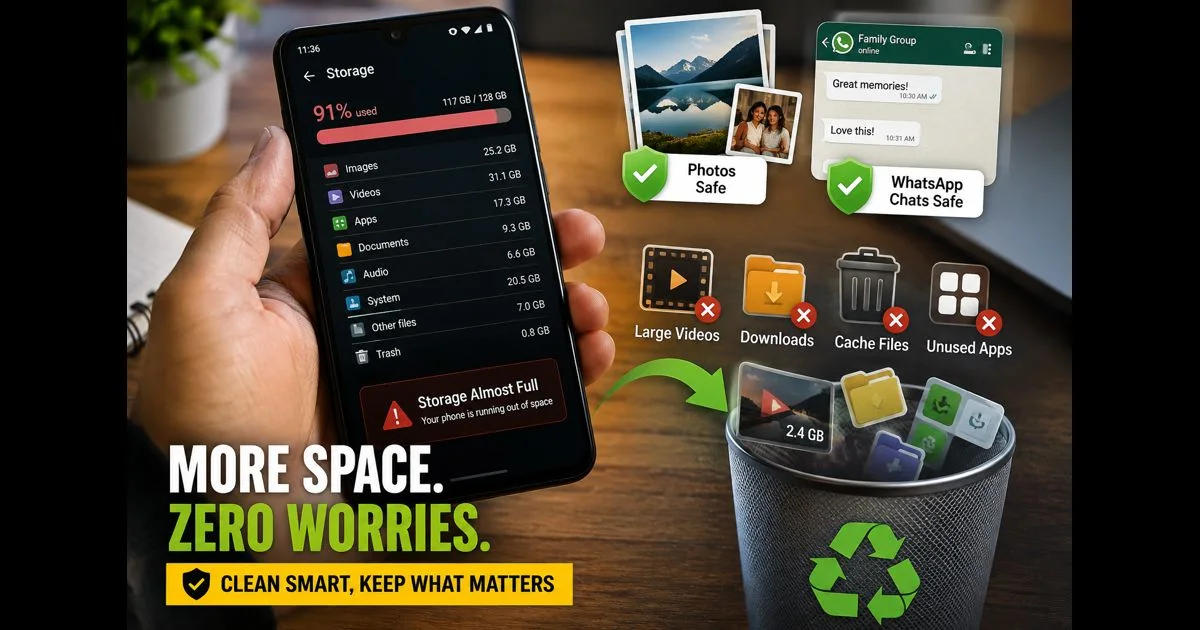
A storage warning can make an Android phone feel slow, prevent app updates, stop the camera from saving new photos, and interrupt WhatsApp downloads. The quickest-looking solution is often to delete files in bulk, but that can remove photos, documents, voice notes, or chats that cannot be easily recovered.
A safer approach is to identify what is using space before deleting anything. Most Android storage problems come from a few common sources: large videos, duplicate downloads, app cache, offline media, unused apps, and files that have been copied into more than one folder.
The steps below help create space while keeping important photos and WhatsApp chats protected.
Check What Is Taking Up Space First
Open Settings and search for Storage. Android will usually show a breakdown of space used by apps, photos, videos, audio, documents, downloads, and system files.
Start with the largest category rather than deleting files at random. A phone that is almost full may have only a few large videos, downloaded shows, or inactive apps causing the problem.
Look for:
- Apps using an unusually large amount of storage
- Videos recorded in high resolution
- Downloaded movies, podcasts, and music
- Old screen recordings and screenshots
- Duplicate images saved from social-media apps
- Large files in the Downloads folder
- Offline maps and app data that are no longer needed
Do not delete anything immediately if the file name is unfamiliar. Open it first and confirm whether it is safe to remove.
Back Up Important Photos Before Cleaning
Photos and videos are usually the files people most regret deleting. Before clearing your gallery, make sure important memories are backed up to a cloud service, computer, external drive, or another trusted location.
If Google Photos backup is enabled, check that the latest items have finished uploading. Open a few recent photos and videos to confirm they are available in the backup account before removing local copies.
Large videos take more time to upload than photos, especially on a slower connection. Keep the phone connected to Wi-Fi and power until the backup is complete.
Once important media has been safely backed up, Google Photos may offer an option such as Free up space. This removes device copies that have already been backed up while preserving the cloud versions. Read the confirmation message carefully before approving it.
A backup is useful only when it has actually completed and can be accessed.
Protect WhatsApp Chats Before Clearing Data
WhatsApp chats, photos, documents, and voice notes can use a large amount of storage over time. Never clear WhatsApp app data just to create space unless you are certain a recent backup exists and understand the consequences.
First, open WhatsApp and review its storage management area. The exact menu name may vary, but it usually lets users see large files, forwarded media, and chats that consume the most space.
A safe order is:
- Check that WhatsApp chat backup is current.
- Review large videos and forwarded files inside WhatsApp.
- Delete only media that is no longer needed.
- Keep important documents, family photos, and voice notes saved elsewhere before removing them.
Group chats often create the biggest storage problem because they receive many videos, images, and repeated messages. Deleting a few large, unnecessary videos can free more space than removing hundreds of small text messages.
Avoid clearing the app’s full storage from Android Settings. That can sign you out and may remove local data. Clearing cache is generally different from clearing data, but always read the on-screen description before selecting either option.
Clear App Cache, Not App Data
Apps store temporary files to load content more quickly. Over time, these cached files can become large, especially in browsers, social-media apps, video apps, and music services.
Go to Settings > Apps, choose a large app, and open its storage options. If available, select Clear cache.
Clearing cache usually removes temporary files and does not delete the account or personal content inside the app. Clearing data, however, can reset the app, remove settings, or sign the user out. It should only be used when necessary and after confirming that important information is safely stored.
Do this selectively. There is no need to clear cache for every app every day.
Remove Downloads You Have Already Used
The Downloads folder often becomes a hidden storage problem. It can contain old PDFs, ZIP files, installation files, videos, images, duplicate documents, and attachments received through a browser or messaging app.
Open the Files app and check Downloads. Sort files by size or date if that option is available. Remove old files that are no longer useful, but open important-looking documents first.
Common files that can often be deleted after use include:
- APK files after an app has been installed from a trusted source
- Duplicate PDFs
- Old invoices or tickets that have been saved elsewhere
- Large video files downloaded for one-time viewing
- Installation packages and compressed folders
- Old documents sent repeatedly in group chats
Be careful with folders that belong to apps. Removing files from the wrong location may affect saved downloads or offline content.
Delete Offline Content From Streaming Apps
Video, music, podcast, and map apps can quietly use several gigabytes of storage. Downloads intended for a flight, journey, or temporary offline use may remain on the phone long after they are needed.
Open each major streaming or navigation app and review its downloaded content. Remove shows, films, playlists, podcast episodes, or map areas that are no longer required.
This is often safer than deleting personal files because the same content can usually be downloaded again later.
If storage keeps filling up, check whether apps are automatically downloading episodes, saving social-media videos, or storing offline content without a clear limit.
Uninstall Apps You No Longer Use
Unused apps take up more than their original installation size. Their updates, cached files, downloaded resources, and saved content can grow over time.
Review installed apps and remove those that have not been used for months. Before uninstalling an app, confirm that it does not contain unsaved files, offline notes, downloaded media, or account information that needs to be backed up.
Android may also offer an archive option for rarely used apps. This can free some space while retaining basic app information for later restoration.
Be cautious with “cleaner” or “booster” apps. Many offer little practical benefit and may request broad access to files, notifications, or device activity. Before installing one, review the privacy settings on your Android phone and consider whether the app really needs the permissions it requests.
Find Large Videos, Screen Recordings and Duplicate Media
Videos are usually the largest personal files on a phone. A few long recordings can consume more storage than thousands of photos.
Open the gallery or Files app and look for:
- Long camera videos
- Screen recordings
- Repeated downloads from WhatsApp or Telegram
- Edited versions of the same image
- Blurry photos and accidental screenshots
- Media saved from social platforms
- Old files moved between folders more than once
Delete only after checking the content. If a video is important but too large to keep on the phone, transfer it to cloud storage, a computer, or an external drive first.
For WhatsApp media, remember that the same item may appear both in a WhatsApp folder and in the gallery. Removing one copy does not always remove every duplicate.
Manage Automatic Media Downloads
Automatic media downloads can fill storage without notice, especially in active WhatsApp groups.
In WhatsApp settings, review media auto-download preferences for mobile data, Wi-Fi, and roaming. Consider limiting automatic video downloads, particularly in group chats. You can still download individual files when you want them.
Also check other apps that save media automatically. Social platforms, messaging apps, browsers, and cloud services may each create separate copies of photos and videos.
A small change to auto-download settings can prevent the same storage issue from returning.
Move Files to an SD Card or External Storage
If the phone supports a microSD card, moving photos, videos, music, and documents can create more internal storage space. An external USB drive can also be useful for transferring large files from compatible Android devices.
This is a good option for files that are important but not needed every day. Keep in mind that an SD card can fail or be lost, so it should not be the only copy of valuable photos or documents.
Always keep at least one additional backup for important files.
Keep Some Storage Free
A phone performs better when it has free internal space available. Android needs room for temporary files, updates, photos, and app activity. Waiting until storage reaches zero can cause apps to freeze or behave unpredictably.
Make a habit of checking storage once a month, especially if you record many videos or belong to busy messaging groups. Removing a few unnecessary files regularly is safer than doing a rushed clean-up after the phone is completely full.
Final Thoughts
Freeing storage on Android does not require deleting the things that matter most. Start by checking large categories, confirm backups for photos and WhatsApp chats, clear temporary cache files, remove old downloads, and review offline media.
The safest rule is simple: back up important files first, then remove only what you have checked. This keeps the phone running smoothly without turning a storage clean-up into a data-loss problem.