



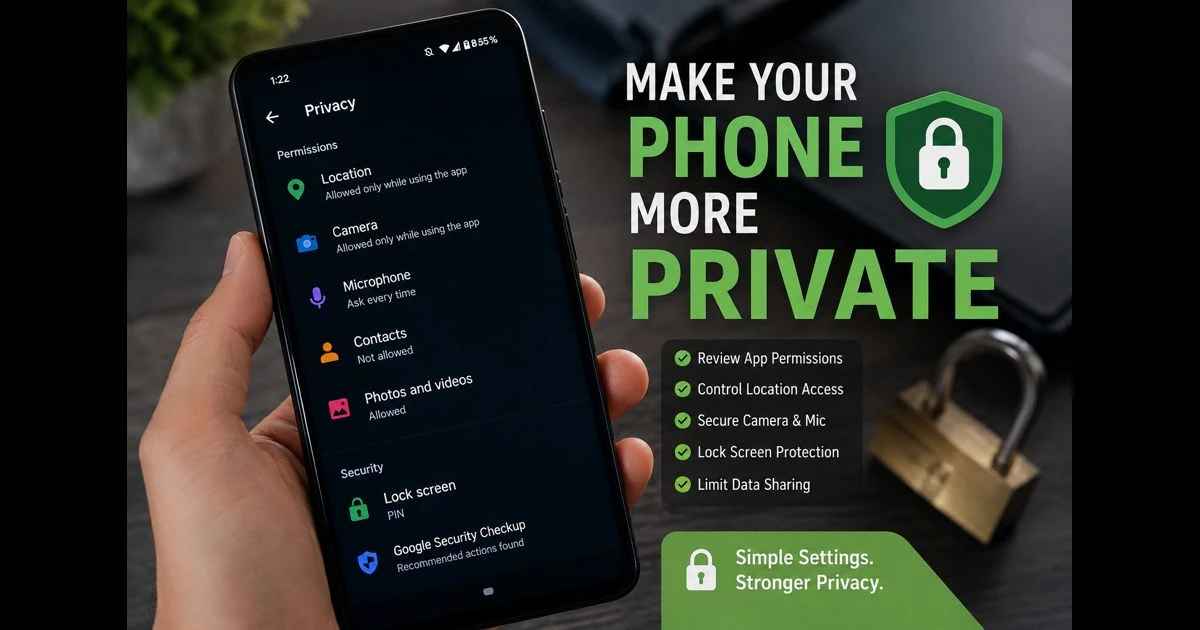
An Android phone contains far more than contacts and photos. It may hold private conversations, email accounts, banking access, saved passwords, location history, documents, and login codes. Privacy settings cannot remove every risk, but a few thoughtful changes can reduce unnecessary data sharing and make it harder for someone else to access personal information.
Android menus differ slightly between brands such as Samsung, Google Pixel, Xiaomi, OnePlus, and Vivo. Even so, the same core controls are usually available through the Settings app. Alongside technology news, apps, gaming and social media updates, these privacy settings deserve regular attention because they affect daily phone use.
Review App Permissions One by One
Apps often request access to the camera, microphone, location, contacts, photos, or nearby devices. Some permissions are necessary for an app’s main function. A map app needs location access, for example, while a video-calling app needs the camera and microphone.
The important question is whether an app needs that access all the time.
Open Settings, then look for Privacy, Security & Privacy, or Permission Manager. Review the following categories:
- Location
- Camera
- Microphone
- Contacts
- Photos and videos
- Files and media
- SMS and call logs
- Nearby devices
For apps that do not need permanent access, choose Ask every time or Allow only while using the app. Deny permissions that do not match the app’s purpose. A simple wallpaper, calculator, or flashlight app should not normally need contacts, microphone access, or precise location.
It is also sensible to remove apps that repeatedly request permissions without a clear reason.
Set Location Access to “Only While Using the App”
Location data can reveal where a person lives, works, travels, shops, and spends time. Many apps request it by default, even when location is not essential to their service.
For navigation, ride-sharing, food delivery, and weather apps, location access can be useful. For most other apps, it is better to select Allow only while using the app or Don’t allow.
Where available, turn off Precise location for apps that only need an approximate area. A weather app may work well with approximate location, while turn-by-turn navigation usually needs precise location.
Also check whether location services are being used in the background. Background access should be limited to apps where it has a clear practical purpose.
Turn Off Unnecessary Ad Personalisation
Advertising cannot always be removed from free apps and services, but Android settings can reduce how much advertising is tailored using device activity.
Search Settings for terms such as Ads, Ad privacy, or Advertising ID. The available options vary by phone and Android version, but users may be able to reset or delete the advertising ID and manage personalised advertising preferences.
This does not stop all advertising, and it does not make browsing anonymous. It simply gives users more control over how advertising systems associate activity with a device.
Be cautious of apps that promise complete privacy with one tap. Privacy is usually built through several settings and sensible habits, not through a single unknown tool.
Check the Privacy Dashboard Regularly
Many Android phones include a Privacy Dashboard that shows which apps accessed sensitive permissions during a recent period. It can reveal, for example, whether an app used the microphone, camera, or location when that access was not expected.
Open Settings and search for Privacy Dashboard or Permission usage. If an app appears to use a sensitive permission without a clear reason, review its settings or uninstall it.
This is particularly useful after installing a new app. A quick check a few days later can show whether the app is behaving in a way that matches its stated purpose.
Protect the Lock Screen
A secure lock screen is one of the most important privacy settings on any phone. Use a strong PIN, password, or pattern that cannot be easily guessed. Avoid obvious choices such as a birth year, repeated digits, or a simple shape.
Fingerprint or face unlock can make access more convenient, but they should support—not replace—a strong screen lock.
Notifications can also expose private information when the phone is locked. Messages, account alerts, one-time codes, and email previews may appear on the screen for anyone nearby to read.
In notification settings, consider hiding sensitive content on the lock screen. A notification can still appear without showing the full message, sender details, or verification code.
Limit What Appears in Notifications
Notifications are useful, but they can reveal more than intended. Banking alerts, private conversations, calendar details, and login codes should not be visible to every person who sees the phone.
Open Settings > Notifications and review which apps can show content on the lock screen. For sensitive apps, choose an option that hides content until the phone is unlocked.
It is also worth disabling notifications from apps that do not provide meaningful updates. Fewer unnecessary alerts make it easier to notice important security warnings or account messages.
Keep Google Account Security Up to Date
Android privacy is closely connected to the Google Account signed in on the device. This account may store email, photos, passwords, contacts, backups, location history, and app purchases.
Review the account’s security settings regularly. Important actions include:
- Using a unique password that is not reused elsewhere
- Turning on two-step verification
- Checking signed-in devices and removing unfamiliar ones
- Reviewing recovery email addresses and phone numbers
- Checking recent security activity
- Removing third-party apps that no longer need account access
Two-step verification is especially valuable because a password alone may not protect an account if it is exposed through a phishing message, a data breach, or a reused login.
Update Android and Installed Apps
Updates are not only about new features. They can fix security weaknesses and improve the reliability of the phone.
Check Settings > System > Software update or search Settings for Update. Also open the Google Play Store and update installed apps regularly.
Avoid delaying important security updates for long periods. If a phone no longer receives updates, be extra careful about app downloads, browser permissions, unfamiliar links, and sensitive account activity.
An updated device is not automatically safe, but it is generally better protected against known problems than one running outdated software.
Use Official App Sources
The safest place to install Android apps is usually the Google Play Store or the official website of a recognised developer. Downloading APK files from unfamiliar sources can expose a phone to altered apps, intrusive advertising, hidden subscriptions, or malicious software.
If installing an app outside an official store is genuinely necessary, verify the publisher carefully and avoid files shared through random social-media posts, pop-ups, messaging groups, or shortened links.
Do not disable Android security warnings simply because an app asks you to. Warnings are not always perfect, but they are an important signal to pause and check the source.
Review Accessibility Access
Accessibility tools are important for many users, but they are also powerful. An app with accessibility access may be able to view screen content, interact with controls, or read information displayed on the device.
Open Settings and search for Accessibility. Check which downloaded apps have access enabled. If an app does not clearly need this permission, turn it off.
Be especially careful with apps that claim to boost performance, automate tasks, clean the phone, or offer rewards while requesting accessibility access. These requests deserve close scrutiny.
Manage Clipboard, Camera and Microphone Indicators
Modern Android phones usually show an indicator when an app is using the microphone or camera. Do not ignore it if it appears unexpectedly.
If an indicator appears while no relevant app is in use, open the Privacy Dashboard to see which app accessed that permission. Remove its permission if the access does not make sense.
Some Android versions also let users disable camera or microphone access for all apps temporarily through Quick Settings. This can be useful in situations where extra privacy is needed, though it may prevent calls, recordings, or other features from working until access is restored.
Use a Separate Profile for Work When Needed
If a phone is used for both work and personal life, a work profile can help keep business apps and information separate from personal apps. Availability depends on the phone and employer setup, but it can be useful for people who receive work email, documents, or chat messages on a personal device.
A separate profile is not necessary for everyone. However, it can reduce accidental mixing of files, notifications, and accounts when work and personal use are both frequent.
Final Thoughts
The best Android privacy settings are the ones that match how a phone is actually used. A navigation app may need location access, while a calculator does not. A messaging app may need notifications, while a casual game may not need access to contacts or the microphone.
Reviewing permissions, securing the lock screen, limiting unnecessary location sharing, keeping the device updated, and installing apps from trustworthy sources can make a meaningful difference. Privacy is not a one-time setup; it is a habit worth revisiting whenever a new app, update, or account is added to the phone.