



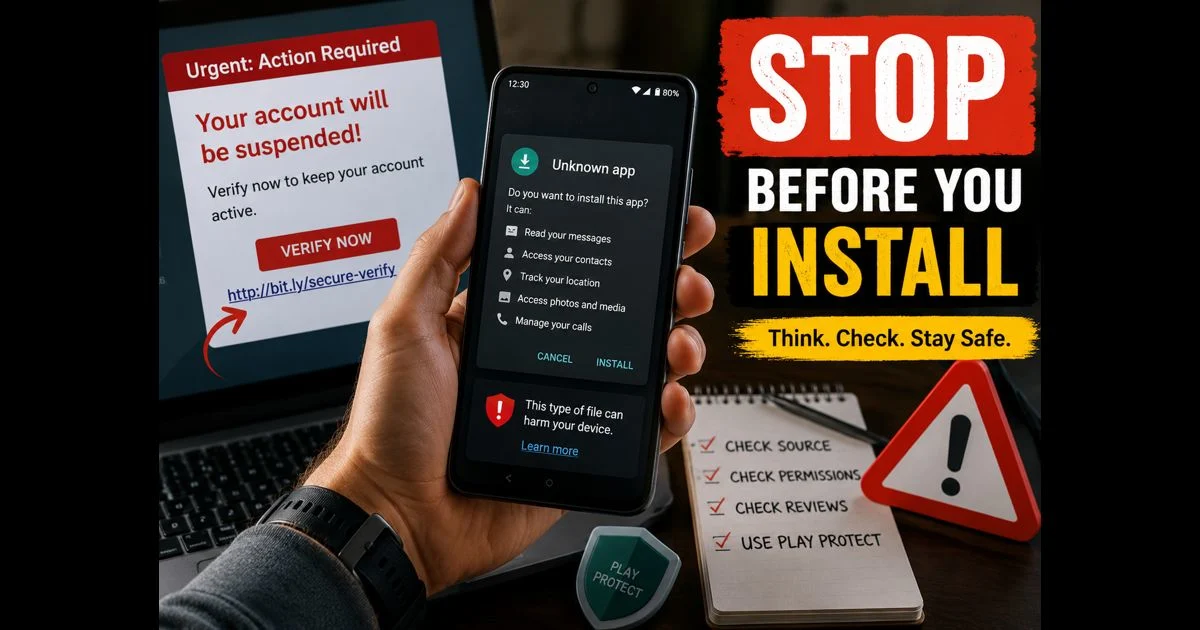
Android gives users a great deal of freedom to install apps and customise their phones. That flexibility is useful, but it also means a person may encounter fake apps, misleading links, copied websites, and APK files from sources that cannot be trusted.
An APK is simply an Android app installation file. It is not automatically harmful. The risk comes from downloading an altered, misleading, or malicious file from an unknown source, then giving it access to the phone, accounts, messages, or payment information.
The safest habit is simple: pause before installing, signing in, granting permissions, or entering a verification code.
Check Where the App Is Coming From
The Google Play Store is usually the safest starting point for Android apps because it includes security checks and ongoing protections. It is still sensible to review the developer, ratings, permissions, and recent feedback rather than installing an app without checking.
Be particularly cautious when an app is offered through:
- A pop-up saying the phone is infected
- A social-media comment or direct message
- An unfamiliar website with a download button
- A shortened link
- A Telegram or WhatsApp group
- An email attachment
- A website claiming to offer a paid app for free
- A page that asks users to disable Android security before installing
Google Play Protect scans apps and can warn about potentially harmful software, including apps installed from outside Google Play. Keeping it enabled is especially important for anyone who downloads apps from other sources. Google Play Protect guidance
A warning should not be treated as an inconvenience to bypass. It is a reason to stop and verify the app’s source.
Look Closely at the App Name and Developer
Fake apps often copy the name, icon, colour scheme, or screenshots of a real service. The difference may be small: a slightly altered spelling, an unusual developer name, or a logo that looks almost—but not exactly—like the original.
Before installing an app, check:
- The exact app name
- The developer or publisher name
- The number and quality of reviews
- The date of the latest update
- The app description for poor grammar, vague promises, or copied text
- Whether the official company website links to the same app listing
A genuine bank, government service, social platform, or well-known company will usually link to its official Android app from its own website. If the website and app listing do not match, do not install it.
Do not rely only on star ratings. Fake reviews and copied comments can make an unsafe app appear legitimate.
Question Permissions That Do Not Match the App’s Purpose
An app should request only the access it genuinely needs. A camera app may need camera and photo access. A navigation app may need location. But a basic calculator, wallpaper app, or flashlight app should not normally need contacts, SMS, microphone, accessibility access, or permission to install other apps.
Before approving a request, ask: “Does this feature need that access to work?”
Permissions that deserve extra care include:
- Accessibility access
- Device administrator access
- Notification access
- Installing unknown apps
- SMS and call-log access
- Contacts
- Microphone and camera
- Full file access
- Displaying over other apps
Accessibility access is particularly sensitive because it can allow an app to view screen content or interact with controls. Never approve it for an app unless its purpose clearly requires it and the developer is trusted.
For a fuller review of unnecessary permissions, see the guide to Android privacy controls.
Be Careful With “Install Unknown Apps” Requests
Android normally limits app installation from outside trusted stores. If a browser, file manager, messaging app, or social app asks for permission to install unknown apps, do not enable it casually.
This setting can be necessary in limited situations, such as installing a legitimate app provided directly by an organisation. In most cases, it is safer to leave it disabled.
If it has already been enabled, open Android Settings and search for Install unknown apps. Review which apps have permission and turn it off for apps that do not need it.
Never disable security protections just because a website tells you that an APK is safe. A legitimate publisher should not need to pressure users into weakening device security.
Recognise the Warning Signs of a Scam Link
Scam links are designed to create urgency. They may claim that an account will be suspended, a payment has failed, a prize is waiting, a parcel cannot be delivered, or a verification step is required immediately.
Common warning signs include:
- A message that creates panic or urgency
- Misspelled company names or unusual web addresses
- A link that does not match the company’s real domain
- Requests for passwords, card details, or one-time codes
- A demand to install an app to receive money or a reward
- Messages from an unknown number pretending to be a friend or business
- Unexpected QR codes asking to connect an account
- Promises of premium features, free subscriptions, or game rewards
Do not log in through a link received in an unexpected message. Instead, open the official app or type the organisation’s address into the browser manually.
Even if a message appears to come from someone known, verify it through another method if the request is unusual. A compromised account can send scam links to trusted contacts.
Treat WhatsApp Messages With Extra Care
WhatsApp is often used for personal conversations, which can make scam messages feel more believable. A fraudster may pretend to be a family member with a new number, a delivery company, a bank, or WhatsApp support.
Never share a WhatsApp registration code, account password, two-step verification detail, or banking code with another person. These details can be used to take over accounts or access personal information.
When an unfamiliar message includes a link, do not tap it automatically. Check the sender, read the web address carefully, and confirm the request independently. The guide to WhatsApp privacy settings explains additional ways to control group access, linked devices, and unwanted contact attempts.
Blocking and reporting suspicious accounts is safer than replying, arguing, or forwarding the message.
Do Not Trust “Mod” Apps and Free Premium Offers
Modified versions of popular apps are often promoted as a way to unlock paid features, remove ads, gain unlimited game currency, or access premium content for free. These offers can be tempting, but they often come with serious risks.
A modified app can be changed to:
- Display intrusive advertising
- Collect login details
- Read files or messages
- Install additional software
- Redirect payments
- Show fake screens that imitate real services
- Cause account bans or loss of game progress
An app’s normal icon and name do not prove that its code is safe. If the file has been altered, the original developer may no longer control what it does.
Avoid apps that promise unlimited coins, free subscriptions, hacked features, account recovery shortcuts, or access to content that normally requires payment.
Check the Website Before Downloading an APK
If an APK download is unavoidable, verify the source carefully before opening it.
A safer source should have a clear connection to the actual developer or organisation. The website address should be spelled correctly, use HTTPS, and not be filled with aggressive pop-ups or multiple fake download buttons.
Warning signs include:
- Several “Download” buttons leading to unrelated pages
- A file name that does not match the app
- A request to install another app first
- A page that opens repeated pop-ups
- A download that starts without clear confirmation
- A requirement to share the link before downloading
- Claims that an app is unavailable on official stores for secret reasons
Never enter account credentials into a download page just to receive an APK. A legitimate download should not require a social-media password, banking code, or messaging-app verification code.
Keep Android, Apps and Play Protect Updated
Security updates address known problems that could otherwise be used to harm a device or steal information. Check for Android system updates and app updates regularly.
Google’s Android security guidance recommends keeping devices updated where possible, and notes that Google Play Protect helps warn users about potentially harmful apps. Android Security Bulletin
An older phone may no longer receive updates. If that is the case, be more selective about installing new apps, avoid unknown APKs completely, and do not use the device for sensitive financial activity if its security is no longer maintained.
What to Do if You Installed a Suspicious App
If an app seems suspicious after installation, act calmly and quickly.
- Disconnect from the internet if the app is actively showing pop-ups or behaving strangely.
- Do not enter passwords, card details, or verification codes into the app.
- Open Settings and uninstall the app.
- Check whether it has accessibility, device administrator, notification, or unknown-app installation permissions, and revoke them.
- Run a Google Play Protect scan.
- Change passwords for any account used in the suspicious app, preferably from another trusted device.
- Contact the bank or payment provider immediately if financial details were entered.
- Review linked devices and account-security activity for important services.
If the app cannot be removed, repeatedly reappears, or has been given powerful device-control permissions, professional technical support may be the safest next step. Back up important files carefully before considering a factory reset.
Final Thoughts
Fake apps, scam links, and unsafe APK downloads usually depend on a rushed decision: tapping first, checking later. The best defence is to slow down.
Install apps from recognised sources, verify the developer, question unnecessary permissions, keep Play Protect enabled, and never share passwords or verification codes through messages. A few minutes of checking can prevent an account takeover, financial loss, or a much more difficult phone-cleanup problem.