



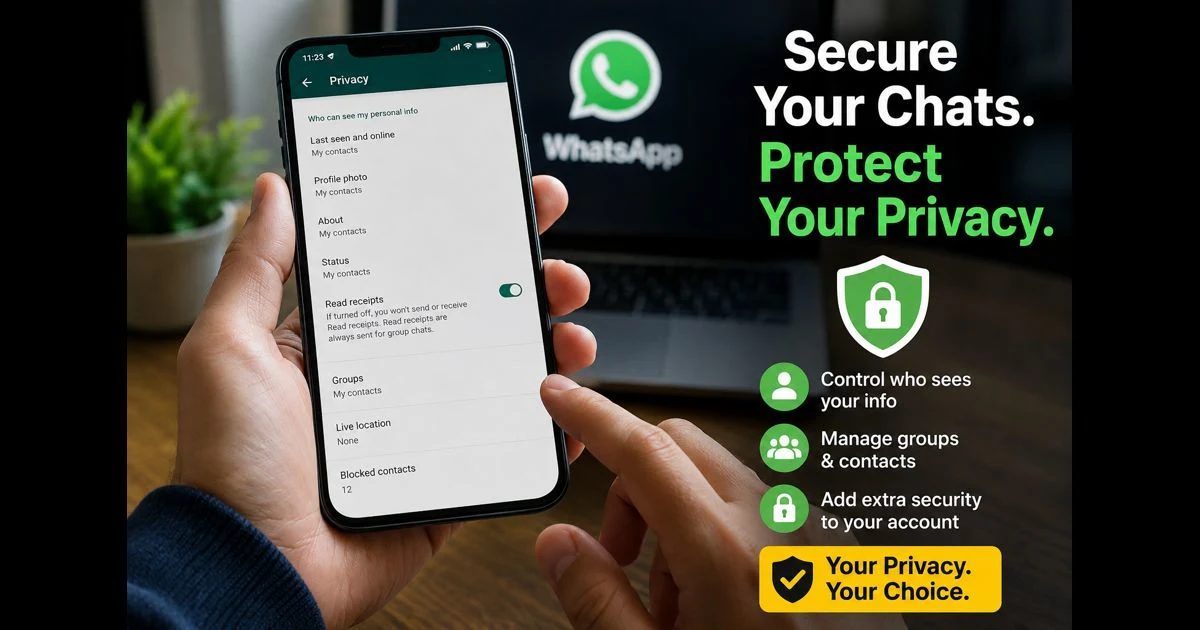
WhatsApp is often used for conversations that are more personal than public social-media posts. It may contain family photos, private messages, addresses, travel plans, documents, voice notes, account alerts, and work-related information. Before sharing personal details through the app, it is worth reviewing the settings that control who can see your activity and who can contact you.
Most privacy controls are available in WhatsApp Settings > Privacy, although menu labels can vary slightly by device and app version. The right choices depend on how a person uses WhatsApp, but a few settings deserve attention from everyone.
Choose Who Can See Your Last Seen and Online Status
Last seen and online status can reveal when someone was recently active on WhatsApp. That may be harmless for close friends and family, but it is not information everyone needs to see.
In the privacy settings, review the controls for Last seen and online. WhatsApp generally allows users to limit this visibility to selected groups, such as contacts only, or to exclude particular people.
A more private choice is usually to allow only trusted contacts to see this information, or to hide it completely when it is not needed.
Keep in mind that privacy settings work both ways in some cases. If you choose not to share your own last-seen status, you may not be able to see other people’s status either.
Limit Profile Photo, About and Status Visibility
A WhatsApp profile photo can reveal more than intended. It may show a face, family member, child, workplace, location, or other personal details. The same applies to the About section and status updates.
Review who can see:
- Profile photo
- About information
- Status updates
- Links shared in a status
- Personal images or videos posted publicly to contacts
For most people, My Contacts is a sensible default. If there are people in the contact list who should not see this information, use the option to exclude specific contacts where available.
Avoid putting a personal address, email, workplace details, banking information, travel plans, or identification documents in an About section or public-facing status.
A status may disappear after a set period, but screenshots and forwarded copies can remain.
Control Who Can Add You to Groups
WhatsApp groups can be useful for family, school, work, events, and community updates. They can also expose a phone number to people who are not personally known.
Check the Groups privacy setting and decide who can add you without permission. Limiting this to contacts can reduce unexpected group invitations and keep a phone number from being shared more widely than intended.
If an unfamiliar person needs to add you to a group, they can usually send a private invitation instead. This gives you a chance to review the group before joining.
Be cautious about groups that ask for personal documents, payment details, verification codes, or downloads. A familiar group name does not guarantee that every member or shared link is safe.
Turn On Two-Step Verification
Two-step verification adds an additional layer of protection to a WhatsApp account. It helps reduce the chance of account takeover if someone obtains a registration code or attempts to register the phone number on another device.
Set it up in Settings > Account > Two-step verification. Choose a strong verification method and keep the recovery information current. Do not share verification codes, passwords, or recovery details with anyone, even if a message claims to come from WhatsApp support.
WhatsApp’s current help guidance describes two-step verification as an optional account-security feature and lets users manage its settings from the Account section. WhatsApp Help Center
Review Linked Devices
WhatsApp can be used on a computer, tablet, or another linked device. This is convenient, but every linked session should be recognised.
Open Linked devices in WhatsApp settings and check the list regularly. Remove any browser, computer, or device that you do not recognise or no longer use.
It is especially important to check this after:
- Using WhatsApp Web on a shared computer
- Selling, repairing, or lending a device
- Signing in on a work computer
- Receiving an unexpected account-security alert
- Clicking a suspicious link or scanning an unfamiliar QR code
A linked device may allow someone to see messages that arrive while the session remains active.
Use Disappearing Messages Carefully
Disappearing messages can automatically remove new messages from a chat after a selected period. This can be useful for conversations that do not need to remain in the message history.
However, disappearing messages are not a complete privacy solution. A recipient can still take a screenshot, copy information, forward content, or save media before it disappears. The setting also does not remove anything already saved outside the chat.
Use it as a way to reduce unnecessary message history, not as a guarantee that sensitive information cannot be retained.
For highly sensitive information, consider whether it should be sent through a messaging app at all.
Check Read Receipts Before Sending Sensitive Messages
Read receipts show when a message has been read. Some people prefer this feature because it makes communication clearer. Others prefer more privacy and do not want their reading activity shown.
The Read receipts setting can usually be turned off in WhatsApp privacy controls. Before changing it, remember that it may also prevent you from seeing read receipts from others in individual chats.
Group chats work differently, so do not rely on this setting to hide all activity in a group conversation.
Silence Unknown Callers When Needed
Unexpected WhatsApp calls can be annoying and may sometimes be connected to spam or unwanted contact attempts. The app includes options that can help reduce disruptions from callers who are not saved in the contact list.
Silencing unknown callers does not block them from appearing in the call log, but it can stop the phone from ringing for those calls. This makes it easier to review unfamiliar numbers later without being interrupted.
If an unknown caller repeatedly contacts you, use the block and report options rather than engaging with suspicious messages or calls.
Be Selective With Live Location Sharing
Live location sharing can be useful when meeting friends, travelling, or coordinating a pickup. It can also reveal real-time movement and should only be shared with people who are trusted.
Before sending live location, check:
- Who will receive it
- How long the sharing period will last
- Whether the conversation is private or part of a group
- Whether the location is still needed after the meeting or journey ends
Stop live location sharing as soon as it is no longer necessary. Do not share it casually with people you have only met online or with large groups where not every member is known.
Protect Photos, Videos and Documents Before Sending
A photo can contain more information than what appears in the image. It may show a home address, a child’s school, vehicle details, a computer screen, an identity document, or a location in the background.
Before sharing a file, take a moment to check exactly what it contains. Crop out irrelevant details where possible. Never send passwords, one-time codes, full bank-card details, or government identification documents in a group chat.
Photos and videos shared through WhatsApp can also consume a lot of space, particularly in busy groups. If media starts filling the device, use the guide on freeing up Android storage without losing important chats rather than clearing WhatsApp data without checking backups.
Review Automatic Media Downloads
WhatsApp can automatically download photos, audio, videos, and documents received in chats. This is convenient, but it means files can appear in the gallery or device storage without being reviewed first.
Check media auto-download settings for mobile data, Wi-Fi, and roaming. Many users choose to allow photos on Wi-Fi while keeping automatic video and document downloads limited.
This gives more control over what is saved to the phone and reduces the risk of downloading unwanted or inappropriate files automatically.
For groups with frequent media sharing, consider turning off automatic saving to the gallery. Important photos can still be saved individually after checking them.
Keep Privacy Settings Separate From Phone Permissions
WhatsApp privacy settings control visibility within the app. Android permissions control what WhatsApp can access on the phone, such as contacts, camera, microphone, photos, and location.
Both are important. A person may limit who sees their profile photo inside WhatsApp while still allowing the app access to every photo stored on the device. Review permissions in Android Settings and only keep access that supports features you actually use.
For example, camera and microphone access are necessary for video calls, while location access should only be used when sharing location is needed.
Watch for Impersonation and Verification Scams
A common scam starts with a request for a WhatsApp registration code, a two-step verification password, or a message claiming that an account will be suspended. Legitimate account security should never depend on sending a code to another person.
Be cautious if someone:
- Asks for a six-digit registration code
- Claims to be WhatsApp support through a personal chat
- Pressures you to act immediately
- Sends a suspicious login link
- Pretends to be a friend using a new number
- Requests money or personal information unexpectedly
Verify unusual requests through another contact method before responding. Blocking and reporting suspicious accounts is safer than continuing the conversation.
Final Thoughts
WhatsApp privacy is not one setting; it is a set of choices about visibility, account protection, group access, linked devices, location sharing, and personal files.
Reviewing these controls takes only a few minutes, but it can reduce unnecessary exposure of personal information. The best approach is simple: share only what is necessary, choose the smallest suitable audience, and pause before sending anything that would be difficult to take back.